Showing posts with label Outlook. Show all posts

Wednesday, June 20, 2018

Outlook error - You don't have appropriate permission to perform this operation.

If you upgraded outlook to a newer version, maybe you are going to get a problem that you cannot move any mails to personal folder with the error:
"Cannot move the items. You don't have appropriate permission to perform this operation."
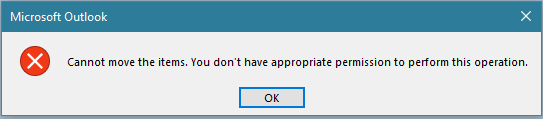

The error is because most likely the value of the key pstdisablegrow needs to be changed to allow the pst file to be changed.

To solve the problem:

  • Open the regedit to modify the outlook registry.
  • Locate the following registry key: HKEY_CURRENT_USER\Software\Microsoft\Office\14.0\Outlook\pst


  • Double click on the Dword pstdisablegrow and change the value from 1 to 0


That should fix the problem.

Friday, September 13, 2013

The junk E-mail filter is not available for your account....


If you get the next error when when clicking "Block Sender" on an email:

The Junk E-mail Filter is not available for your Microsoft Exchange Server e-mail account because you are working online. To enable the Junk E-mail Filter for this account, switch to Cached Exchange Mode.


What you need to do is recreate the outlook profile:

  • Go to control panel and open the Mail


  • Click on show profiles
  • Click on Add
  • Type a name from the new profile then click the OK button

  • Open Outlook using your new profile, now you should be able to send senders to the blocked list


Wednesday, July 28, 2010

How to restore archived items


Crete a new folder

In outlook create a new folder where you are going to restore the items from the archived file
  1. Got To Tools
  2. Account Settings
  3. Click on Data Files
  4. Click on New
  5. Select Outlook Personal Folder, then click OK
  6. Specify the physical name of the file and the location

Import the items

Now we will import the items from the archived to the new folder
1.- On the Go menu, click Folder List, and then in the Folder List, click the new folder.
2.- On the File menu, click Import and Export, Click Import from another program or file. Click Next


3.- Click Personal Folder File (.pst). Click Next
4.- In the File to import box, change the default file name in the path from backup.pst to the name of the archive file you're importing from. Click Next


5.- Click the folder to import from. If you want, click Include sub folders or specify the folder you are interesting on. Indicate how you want Outlook to handle duplicate items.


6.- Click Import items into the current folder.
7.- Click Finish.

The items now should be on your new folder.


Monday, June 14, 2010

Unable to open outlook archive PST file


If you are unable to open your archive file from outlook, looks like it got corrupted; there is a tool that might help you fix the file.

Open up explorer and then browse down to the following folder for Outlook 2007, and run the file SCANPST.EXE:

C:\Program Files\Microsoft Office\Office12\

Once you open up the utility, you’ll have to find the location of your PST file by clicking the Browse button.

Click on the Start button to start the scan…


It will take a while to scan the file, and you’ll get a report at the end telling you whether you have errors in the file. See the image below:


Click on the Repair button, and after a while you’ll finally get the “Repair complete” message.

A log file was created, open it in order to know what was fixed on the file.

At this moment you can try to remap the file in outlook.


Source: http://www.howtogeek.com/howto/microsoft-office/fix-your-broken-outlook-personal-folders-pst-file/