Showing posts with label IIS. Show all posts

Friday, October 20, 2017

VS 2017 Error - Unable to start program http://localhost An operation is not legal

Scenario
You are trying to debug a web site in Visual Studio 2017

Error
Microsoft visual studio is giving the error: Unable to start program http://localhost An operation is not legal


Solution
Disable the JavaScript debugging

  • On VS go to Tools >> Options
  • Go to Debugging >> General
  • Uncheck the option Enable JavaScript debugging for ASP.NET (Chrome and IE)
  • Click OK and try again

Friday, June 16, 2017

MVC Core error - HTTP Error 502.5 - Process Failure

If you are deploying your project to Internet Information Services and you get the error below, there are several possible reasons according with microsoft.


Possible reasons:
  • If you published a self-contained application, confirm that you didn’t set a platform in buildOptions of project.json that conflicts with the publishing RID. For example, do not specify a platform of x86 and publish with an RID of win81-x64 (dotnet publish -c Release -r win81-x64). The project will publish without warning or error but fail with the above logged exceptions on the server.
  • Check the processPath attribute on the element in web.config to confirm that it is dotnet for a portable application or .\my_application.exe for a self-contained application. For a portable application, dotnet.exe might not be accessible via the PATH settings. Confirm that C:\Program Files\dotnet\ exists in the System PATH settings.
  • For a portable application, dotnet.exe might not be accessible for the user identity of the Application Pool. Confirm that the AppPool user identity has access to the C:\Program Files\dotnet directory. Confirm that you have correctly referenced the IIS Integration middleware by calling the .UseIISIntegration() method of the application’s WebHostBuilder().
  • If you are using the .UseUrls() extension method when self-hosting with Kestrel, confirm that it is positioned before the .UseIISIntegration() extension method on WebHostBuilder(). .UseIISIntegration() must set the Url for the reverse-proxy when running Kestrel behind IIS and not have its value overridden by .UseUrls().
I got this error, but in my case the problem was I didn't declared the environment variable ASPNETCORE_ENVIRONMENT, so the application wasn't able to get the appsettings..json file; after I added the variable I restarted the server and my site worked just fine.

Monday, June 12, 2017

ASP MVC Error Unable to connect to web server IIS Express

If you get the next error when trying to run your app from visual studio:


You can try different things to fix the problem

- Right click on your project, then select properties, click on the Debug section, assign a new port in the App URL direction


- In explorer go to the path \.vs\config and delete the applicationhost.config, then rebuild your project 


- Open the task manager and stop the IIS Express if is running so you can get a fresh instance


Tuesday, February 23, 2016

MVC error on IIS 7 and 7.5 The Web server is configured to not list the contents of this directory.

If you get the error:The Web server is configured to not list the contents of this directory.

It is because the MVC URLs end without .aspx, these will not be picked up by IIS and run through the intergrated pipeline and therefore you will end up with 404 not found errors.
Another possible cause is you are using a .Net 4.5 application on a server where it was installed after IIS.

To solve this problem consider how much traffic you will have on your site, if you are not going to have a lot of traffic use the attribute runAllManagedModulesForAllRequest with true value, but keep in mind all your registered HTTP modules run on every request, not just managed requests (e.g. .aspx). This means modules will run on ever .jpg .gif .css .html .pdf etc.

  <system.webServer>
    <modules runAllManagedModulesForAllRequests="true"/>
  </system.webServer>

But if you are going to have a lot of traffic it is better to add the routing module:

<system.webServer>
    <modules>
      <remove name="UrlRoutingModule-4.0" />
      <add name="UrlRoutingModule-4.0" 
           type="System.Web.Routing.UrlRoutingModule" 
            preCondition="" />
    </modules>
  </system.webServer>

Another solution is to install a patch from Microsoft that enables certain IIS 7.0 or IIS 7.5 handlers to handle requests whose URLs do not end with a period.
This is the link to download this patch:

https://support.microsoft.com/en-us/kb/980368


Wednesday, August 6, 2014

IIS An application with this virtual path already exist

If you get the the error "An application with this virtual path already exist": 


when creating an application in IIS is because an application was previously created pointing to that path, some people get confuse because they don't see the application in the connections panel, to remove the virtual path follow the next steps in IIS.

Open IIS Manager

In the Connections pane, expand the Sites node, then click to select the site in which the application is running


In the Actions pane, click View Applications


On the Applications , select the application you want to remove, then click Remove link in the Actions pane.


Click Yes to confirm that you want to remove the application.
Now you are going to be able to create your application!

Thursday, February 24, 2011

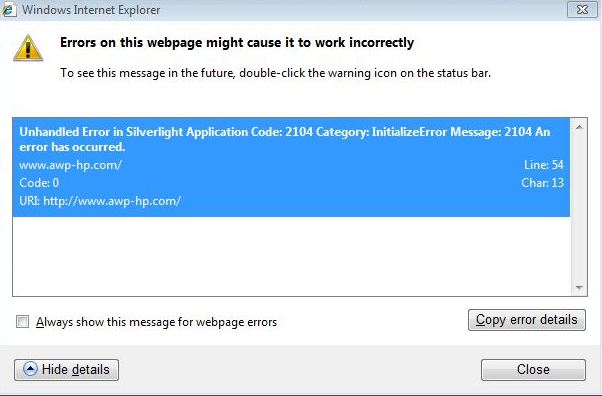
Error in Silverlight Application Code: 2104 Category: InitializeError Message

If you are trying to display your Silverlight project on a browser and you get the next error:

The error maybe due to MIME types. You will have to add the following MIME types:
.xaml    application/xaml+xml
.xap    application/x-silverlight-app
.xbap    application/x-ms-xbap
 

To do so:
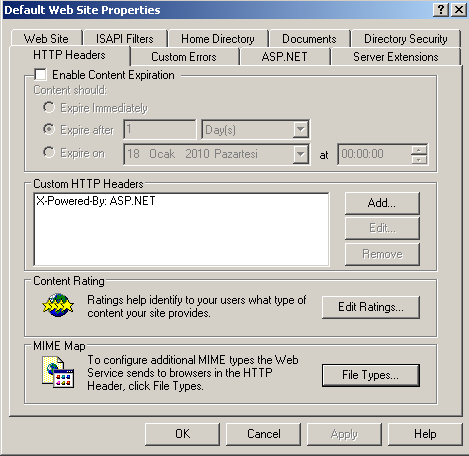
  • Open your web site on IIS
  • Right click on it and select properties

  • Select the HTTP Headers
  • Click on MIME Types

  • Click the New button

  • Add all the MIME types
  • Click OK
  • Click Apply


Wednesday, January 5, 2011

How to register ASP.NET on IIS after installing the .NET Framework

If you install the .NET Framework on a system that has IIS already installed, IIS is automatically configured to handle requests to ASP.NET pages.
If for some reason is not installed, there is a tool that can do the job for you.
The utility is aspnet_regiis.exe, it is located under %WindowsDir%\Microsoft.NET\Framework\vx.y.zzzz\ and you should call it with the -i parameter in the command window, as showed below:

C:\WINDOWS\Microsoft.NET\Framework\v2.0.50727\aspnet_regiis.exe -i