Over time the folder C:\Windows\Installer can grow a lot, many computers or laptops with small HD can have some problems.
The C:\Windows\Installer folder is really important because is where some applications uninstall files and folders are stored, if you delete the files you are not going to be able to uninstall correctly the applications.
Something you can do is backup this folder and when an application needs to be removed you can restore the files from the backup, the uninstall process should work just fine.
Showing posts with label Windows. Show all posts
Showing posts with label Windows. Show all posts
Wednesday, June 11, 2014

Tuesday, August 20, 2013
-- The application-specific permission settings do not grant Local Launch permission for the COM Server application with CLSID {24FF4FDC-1D9F-4195-8C79-0DA39248FF48}
If you see the next error on your logs periodically, the Network Access Protection Agents is not running and a program is trying to use it:
The application-specific permission settings do not grant Local Launch permission for the COM Server application with CLSID
{24FF4FDC-1D9F-4195-8C79-0DA39248FF48}
and APPID
{B292921D-AF50-400C-9B75-0C57A7F29BA1}
to the user NT AUTHORITY\SYSTEM SID (S-1-5-18) from address LocalHost (Using LRPC). This security permission can be modified using the Component Services administrative tool.
If you look in the registry for the key:
HKEY_CLASSES\CLSIC\{24FF4FDC-1D9F-4195-8C79-0DA39248FF48}

The class creating the error in this case is Quarantine Private SHA Binding which which is a Kaspersky Anti-virus product.
The id of this APP:
{B292921D-AF50-400C-9B75-0C57A7F29BA1}
corresponds to the DCOM NAP Agent Service, which in turn is part of the Network Access Protection Agent service.You can see this in the Component Services

The DCOM error is being generated because the application’s SHA encryption module is trying to register with the NAP Agent but the NAP service is not running.
To solve this problem, just enable the Network Protection Agent service.
The application-specific permission settings do not grant Local Launch permission for the COM Server application with CLSID
{24FF4FDC-1D9F-4195-8C79-0DA39248FF48}
and APPID
{B292921D-AF50-400C-9B75-0C57A7F29BA1}
to the user NT AUTHORITY\SYSTEM SID (S-1-5-18) from address LocalHost (Using LRPC). This security permission can be modified using the Component Services administrative tool.
If you look in the registry for the key:
HKEY_CLASSES\CLSIC\{24FF4FDC-1D9F-4195-8C79-0DA39248FF48}

The class creating the error in this case is Quarantine Private SHA Binding which which is a Kaspersky Anti-virus product.
The id of this APP:
{B292921D-AF50-400C-9B75-0C57A7F29BA1}
corresponds to the DCOM NAP Agent Service, which in turn is part of the Network Access Protection Agent service.You can see this in the Component Services

The DCOM error is being generated because the application’s SHA encryption module is trying to register with the NAP Agent but the NAP service is not running.
To solve this problem, just enable the Network Protection Agent service.
Monday, February 21, 2011
Error code 2869 in windows 7
If you are trying to install an application in Windows 7 or Vista, and you get the error:
The installer has encountered an unexpected error installing this package. This may indicate a problem with this package. The error code is 2869
Follow the next steps to solve the problem:

The installer has encountered an unexpected error installing this package. This may indicate a problem with this package. The error code is 2869
Follow the next steps to solve the problem:
- Right click the .exe file
- From the menu select run as administrator
- Follow the instructions to install your program

Tuesday, February 8, 2011
Junction Points in Windows
A Junction Point is a physical location on a local hard disk that points to another location on that disk or another storage device. It is essentially a shortcut.
For the most part, you can ignore Junction Points for everyday use of Windows Vista. The Junction Points are in Vista for backward compatibility of pre-Vista applications. Pre-Vista applications (applications written for XP and 2000) look for folders that are no longer used in Vista. Folders with the “My” prefix such as My Documents, My Pictures, and so on.
Junction points can be identified as follows :
They have the FILE_ATTRIBUTE_REPARSE_POINT, FILE_ATTRIBUTE_HIDDEN, and FILE_ATTRIBUTE_SYSTEM file attributes set.
They also have their access control lists (ACLs) set to deny read access to everyone.
User Profiles in Windows Vista
In Windows XP, 2000, 2003, user profiles are stored under c:\Documents and Settings. In Windows Vista (and the soon to be Windows Server 2008 – Longhorn), profiles are now stored under c:\Users. You will see a c:\Documents and Settings folder in Windows Explorer in Vista, but you will also notice the shortcut icon on this folder, and you will not be able to access this folder. c:\Documents and Settings is now a Junction Point. You can use the dir /aL command to see where c:\Documents and Settings points to or use the table below.
The following table lists the old profile path and the corresponding new path under Windows Vista/Longhorn Server.
Folders to take note of here are the folders in the All Users path. Many older applications that use out of date methods to resolve system folders, will resolve paths under C:\ProgramData when looking for common locations. For example, the common desktop may be resolved as C:\ProgramData\Desktop, however; this is actually a junction point for C:\ProgramData\Users\Public\Desktop. A dir /aL listing in the C:\ProgramData folder reveals the following Junction Points:

Environmental Variables
There are also differences in environment variables between Windows Vista and the older versions of Windows. Windows Server 2003 and below define the following variables relating to profiles:
ALLUSERSPROFILE=C:\Documents and Settings\All Users
APPDATA=C:\Documents and Settings\bjohnson\Application Data
HOMEPATH=\Documents and Settings\bjohnson
TEMP=C:\DOCUME~1\bjohnson\LOCALS~1\Temp
TMP=C:\DOCUME~1\bjohnson\LOCALS~1\Temp
USERPROFILE=C:\Documents and Settings\bjohnson
Windows Vista and Longhorn Server define the same variables while adding a couple more.
ALLUSERSPROFILE=C:\ProgramData
APPDATA=C:\Users\bjohnson\AppData\Roaming
HOMEPATH=\Users\bjohnson
LOCALAPPDATA=C:\Users\bjohnson\AppData\Local
ProgramData=C:\ProgramData
PUBLIC=C:\Users\Public
TEMP=C:\Users\bjohnson\AppData\Local\Temp
TMP=C:\Users\bjohnson\AppData\Local\Temp
USERPROFILE=C:\Users\bjohnson
Source:
http://www.svrops.com/svrops/articles/jpoints.htm
For the most part, you can ignore Junction Points for everyday use of Windows Vista. The Junction Points are in Vista for backward compatibility of pre-Vista applications. Pre-Vista applications (applications written for XP and 2000) look for folders that are no longer used in Vista. Folders with the “My” prefix such as My Documents, My Pictures, and so on.
Junction points can be identified as follows :
They have the FILE_ATTRIBUTE_REPARSE_POINT, FILE_ATTRIBUTE_HIDDEN, and FILE_ATTRIBUTE_SYSTEM file attributes set.
They also have their access control lists (ACLs) set to deny read access to everyone.
User Profiles in Windows Vista
In Windows XP, 2000, 2003, user profiles are stored under c:\Documents and Settings. In Windows Vista (and the soon to be Windows Server 2008 – Longhorn), profiles are now stored under c:\Users. You will see a c:\Documents and Settings folder in Windows Explorer in Vista, but you will also notice the shortcut icon on this folder, and you will not be able to access this folder. c:\Documents and Settings is now a Junction Point. You can use the dir /aL command to see where c:\Documents and Settings points to or use the table below.
The following table lists the old profile path and the corresponding new path under Windows Vista/Longhorn Server.
| Old Path | New Path |
| \Documents and Settings | \Users |
| \Documents and Settings\Default User or %LOGONSERVER%\NETLOGON\Default User | \Users\Default or %LOGONSERVER%\NETLOGON\Default |
| \Documents and Settings\ | \Users\ |
| \Documents and Settings\ | \Users\ |
| \Documents and Settings\ | \Users\ |
| \Documents and Settings\ | \Users\ |
| N/A | \Users\ |
| N/A | \Users\ |
| N/A | \Users\ |
| \Documents and Settings\ | \Users\ |
| \Documents and Settings\ | \Users\ |
| \Documents and Settings\ | \Users\ |
| \Documents and Settings\All Users | \Users\Public |
| \Documents and Settings\All Users\Start Menu | \ProgramData\Microsoft\Windows\Start Menu |
| \Documents and Settings\All Users\Desktop | \Users\Public\Desktop |
Folders to take note of here are the folders in the All Users path. Many older applications that use out of date methods to resolve system folders, will resolve paths under C:\ProgramData when looking for common locations. For example, the common desktop may be resolved as C:\ProgramData\Desktop, however; this is actually a junction point for C:\ProgramData\Users\Public\Desktop. A dir /aL listing in the C:\ProgramData folder reveals the following Junction Points:
| Path | Points To |
| \ProgramData\Application Data | \ProgramData |
| \ProgramData\Desktop | \Users\Public\Desktop |
| \ProgramData\Documents | \Users\Public\Documents |
| \ProgramData\Favorites | \Users\Public\Favorites |
| \ProgramData\Start Menu | \ProgramData\Microsoft\Windows\Start Menu |
| \ProgramData\Templates | \ProgramData\Microsoft\Windows\Templates |
Environmental Variables
There are also differences in environment variables between Windows Vista and the older versions of Windows. Windows Server 2003 and below define the following variables relating to profiles:
ALLUSERSPROFILE=C:\Documents and Settings\All Users
APPDATA=C:\Documents and Settings\bjohnson\Application Data
HOMEPATH=\Documents and Settings\bjohnson
TEMP=C:\DOCUME~1\bjohnson\LOCALS~1\Temp
TMP=C:\DOCUME~1\bjohnson\LOCALS~1\Temp
USERPROFILE=C:\Documents and Settings\bjohnson
Windows Vista and Longhorn Server define the same variables while adding a couple more.
ALLUSERSPROFILE=C:\ProgramData
APPDATA=C:\Users\bjohnson\AppData\Roaming
HOMEPATH=\Users\bjohnson
LOCALAPPDATA=C:\Users\bjohnson\AppData\Local
ProgramData=C:\ProgramData
PUBLIC=C:\Users\Public
TEMP=C:\Users\bjohnson\AppData\Local\Temp
TMP=C:\Users\bjohnson\AppData\Local\Temp
USERPROFILE=C:\Users\bjohnson
Source:
http://www.svrops.com/svrops/articles/jpoints.htm
Application Data Folder
The Application Data Folder is part of your user profile. It is customedized controls for the programs that have been installed for the user. Programs such as Outlook and Outliook express can store their mail databases there. It is not a good idea to remove anything from there.
In this folder applications store their files your settings and much more.
On Windows XP you can find this folder on the path:
C:\Documents and Settings\%UserProfile%\Application Data

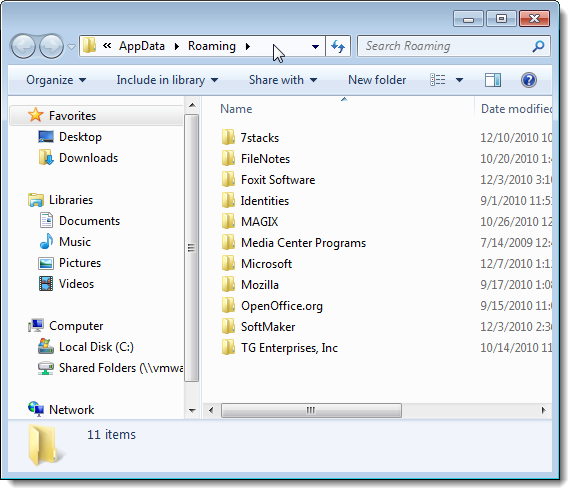
On Windows 7 the Application Data is not an actual folder, it is a Junction which is only there for backward compatibility. A Junction is a shortcut that redirects files and programs to a different location. You can find the Application Data junction in the next path:
C:\Users\%UserProfile%\AppData\Roaming

In this folder applications store their files your settings and much more.
On Windows XP you can find this folder on the path:
C:\Documents and Settings\%UserProfile%\Application Data

On Windows 7 the Application Data is not an actual folder, it is a Junction which is only there for backward compatibility. A Junction is a shortcut that redirects files and programs to a different location. You can find the Application Data junction in the next path:
C:\Users\%UserProfile%\AppData\Roaming

Wednesday, January 26, 2011
Search option starts double click a folder or drive
This usually happens after adding/modifying the File Folder or Drive entries via the Folder Options File Types dialog, as an attempt to add additional context menu items such as Command Prompt here, Print Directory for folders or drives. To fix it you have two options.
Using the command window:
- Click start
- Click Run
- Type on the command window: regsvr32 / i shell32.dll
Using the registry:
- Open the registry editor
- Navigate to:
- HKEY_CLASSES_ROOT \ Directory \ shell
- HKEY_CLASSES_ROOT \ Drive \ shell
- On the right pane click the default value
- Click modify in the Edit menu
- Type in the value data box none
- Click OK
Source:
http://windowsxp.mvps.org/searchwindow.htm
Thursday, December 16, 2010
How to disable Utility Manager (Windows Key + U)
Pressing the Windows key with U starts the Utility Manager, which provides a number of useful aids (e.g., the Narrator, magnifier, on-screen keyboard) for people who have poor vision.
To disable this shortcut, perform one of the following options:
Option 1
1.Start the Microsoft Management Console (MMC) Services snap-in (Start, Programs, Administrative Tools, Services).
2.Right-click Utility Manager, and select Properties.
3.Set the Start-up type to Disabled, and click Apply. Then click OK.
To disable this shortcut, perform one of the following options:
Option 1
1.Start the Microsoft Management Console (MMC) Services snap-in (Start, Programs, Administrative Tools, Services).
2.Right-click Utility Manager, and select Properties.
3.Set the Start-up type to Disabled, and click Apply. Then click OK.
Option 2
Under C:\Windows\System32 you can rename utilman.exe to disable it.
Option 3
If renaming the utility doesn't work, try deleting the util & replacing it with a null file, [cmd window]:
Del utilman.exe
COPY nul utilman.exe
Attr utilman.exe +R
Del utilman.exe
COPY nul utilman.exe
Attr utilman.exe +R
Friday, October 22, 2010
How to copy files larger than 4GB to an USB drive
Windows XP allows you to format a hard disk in two different file system formats: FAT32 and NTFS. These file systems differ in the size of file they can handle. FAT32, for example, can only handle files up to 4GB in size. When it was developed, that size file was almost unheard of but now, a DVD can have files that large or larger routinely.
If you need to copy files larger than 4GB, you need to make certain that the file system on the hard disk you are copying to is NTFS and not FAT32. Many portable USB hard disk drives come formatted as FAT32 in order to interface with the maximum number of operating systems.
To convert from FAT32 to NTFS on the command prompt window (Start | Run | type CMD and press Enter).
Then type the command CONVERT d: /FS:NTFS where d is the drive you want to convert.
You can also do it with the windows interface, watch the video below in order to learn how to do it:
If you need to copy files larger than 4GB, you need to make certain that the file system on the hard disk you are copying to is NTFS and not FAT32. Many portable USB hard disk drives come formatted as FAT32 in order to interface with the maximum number of operating systems.
To convert from FAT32 to NTFS on the command prompt window (Start | Run | type CMD and press Enter).
Then type the command CONVERT d: /FS:NTFS where d is the drive you want to convert.
You can also do it with the windows interface, watch the video below in order to learn how to do it:
Friday, July 30, 2010
How to load last known good configuration
To get the last known good configuration in Windows 2000/XP as it is booting press and hold your "F8 Key" which should bring up the "Windows Advanced Options Menu", some computers require than instead of press and hold the F8 key, type it continously until you get to the startup menu.
Now all you have to do is use your arrow keys to move to "Last Known Good Configuration" and press your Enter key.
Subscribe to:
Posts (Atom)