Wednesday, November 4, 2015

How to connect to SQL database inside of Script Task in SSIS using C#


This example shows how to execute a store procedure inside of a SSIS Script Task:

// Get the connection from the Dts package
Microsoft.SqlServer.Dts.Runtime.ConnectionManager cm = Dts.Connections["connectionManaget1"];

// Create the connection
System.Data.SqlClient.SqlConnection sqlConn = (System.Data.SqlClient.SqlConnection)cm.AcquireConnection(Dts.Transaction);

// Create the command with the connection
System.Data.SqlClient.SqlCommand sqlComm = new System.Data.SqlClient.SqlCommand("EXEC dbo.MyStoreProcedure @var = 1", sqlConn);

// Execute the command
sqlComm.ExecuteNonQuery();

// Release the connection
cm.ReleaseConnection(sqlConn);

Wednesday, September 30, 2015

VS 2013 - “The breakpoint will not currently be hit. The source code is different from the original version.”

If you are getting the next error:


This generally occurs when the dll and the dll source code are different or if the .pdb file information is not matching.

A quick solution is:

  • Delete the /bin folder 
  • Delete the /obj folder
  • Recompile the project

Friday, September 18, 2015

Could not load file or assembly 'System.Web.Http.WebHost, Version=4.0.0.0, Culture=neutral, PublicKeyToken=31bf3856ad364e35' or one of its dependencies. The system cannot find the file specified.

If you are getting the next error when deploying your web application:

Could not load file or assembly 'System.Web.Http.WebHost, Version=4.0.0.0, Culture=neutral, PublicKeyToken=31bf3856ad364e35' or one of its dependencies. The system cannot find the file specified.


or the next error:

Could not load file or assembly 'System.Web.Http.WebHost, Version=4.0.0.0, Culture=neutral, PublicKeyToken=31bf3856ad364e35' or one of its dependencies. The system cannot find the file specified.


or this one:

Could not load file or assembly 'System.Net.Http.Formatting, Version=4.0.0.0, Culture=neutral, PublicKeyToken=31bf3856ad364e35' or one of its dependencies. The system cannot find the file specified.


Or maybe other files, the reason is the .dll is missing in the published site.
To solve the problem in visual studio:

  • Expand the References folder
  • Click on the file missing
  • On the properties section go to the Copy Local option
  • Change the value from False to True

This should fix the problem.

Thursday, September 17, 2015

Uncaught TypeError: $(...).datepicker is not a function

If you get the errior:

          Uncaught TypeError: $(...).datepicker is not a function

The most common reason is a duplicate reference to a JQuery file:

  • Verify you don't have different versions of JQuery in the same page
  • If developing MVC, check your BundleConfig and the web page


Friday, August 7, 2015

Visual Studio “Could not copy... Exceeded count to 10.Failed” during build


Error:
Error   10  Could not copy "obj\Debug\MyApp.Controlls.dll" to
 "bin\Debug\MyApp.Controlls.dll". 
 Exceeded retry count of 10. Failed.    


Error   41  Unable to copy file "obj\Debug\MyApp.exe" to
"bin\Debug\MyApp.exe". The process cannot access the file
'bin\Debug\MyApp.exe' because it is being used by another 
process. 

Cause:
 Most of the time this occurs when the debug process was stopped somewhere in an exception.

Solution 1:
 

Try to Build >> Clean Solution, then Rebuild project


Solution 2:
 

Close Visual Studio, delete the 'bin' and 'obj' folders, then rebuild the project


Solution 3:
 

Go to task manager, localize your project exe file and kill it, then rebuild the project

Tuesday, June 30, 2015

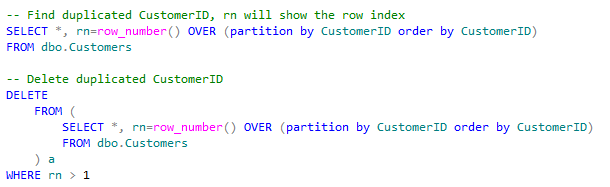
Find or Delete duplicate records in a table

The next query will help you when you are trying to find or/and delete duplicated records on your table, the example uses a windows function and the order by will indicate which record to keep when deleting.


Wednesday, June 3, 2015

Error calling store procedure from other: The transaction manager has disabled its support for remote/network transactions

If tring to execute a stored procedure on server a with distributed transaction which will update the data on another server, and you are getting the next error:

OLE DB provider "SQLNCLI" for linked server "MYSERVER" returned message "The transaction manager has disabled its support for remote/network transactions.".
Msg 7391, Level 16, State 2, Procedure prc_my_code, Line 32
The operation could not be performed because OLE DB provider "SQLNCLI" for linked server "MYSERVER" was unable to begin a distributed transaction.

This means the partner transaction manager has disabled its support for remote/network transactions on the server to be called.

To fix this issue follow the next steps:
Be sure the “Distribute Transaction Coordinator” Service is running on both database server computer and client computers
1. Go to “Administrative Tools >> Services”
2. Turn on the “Distribute Transaction Coordinator”

Now turn on the option to Allow Remote Clients option on the computer running the store procedure
1. Go to “Administrative Tools >> Component Services”
2. Go to “Component Services >> Computers >> My Computer”
3. Right click on “My Computer >> Properties >> MSDTC”
4. Click “Security Configuration”
5. Check
              “Network DTC Access”
              “Allow Remote Client”,
              “Allow Inbound/Outbound”
6. Select to restart the service
7. If this doesn't work, you may need to restart the server